TetherDroid mirrors your phone to your Mac or Windows PC so you can text, take calls, manage notifications, share files, and see your screen — without reaching for your phone. Private by design, effortless to use.
No credit card to start · No subscriptions · No Ads · No micro-payments for micro-functionality
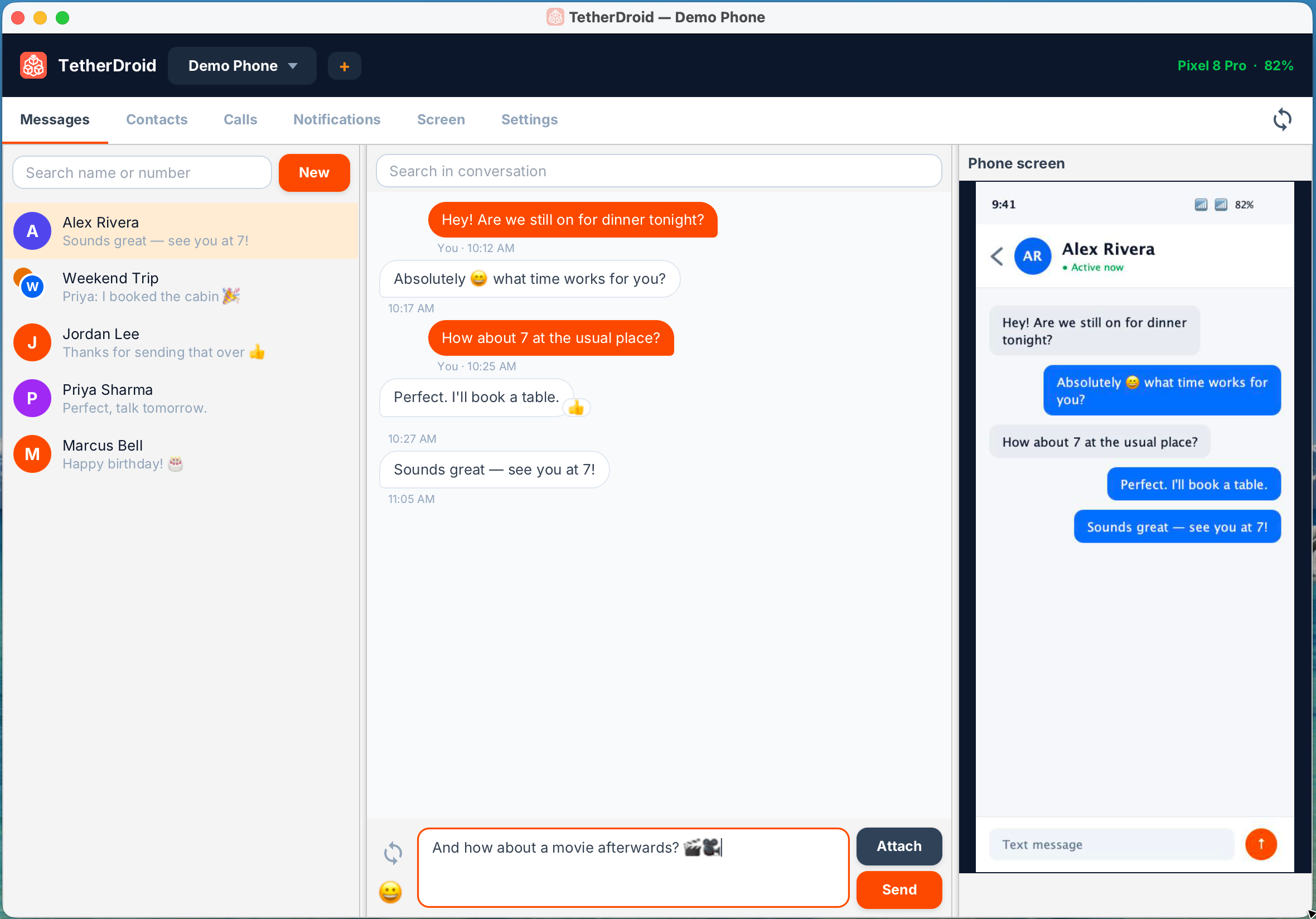
Stay in your flow. TetherDroid brings the parts of your phone you actually need to your desktop.
Read and send SMS + RCS, see conversations in real time, and tap back with emoji reactions — all from your keyboard. Unlike other solutions, TetherDroid is encrypted end-to-end, making your messaging completely private!
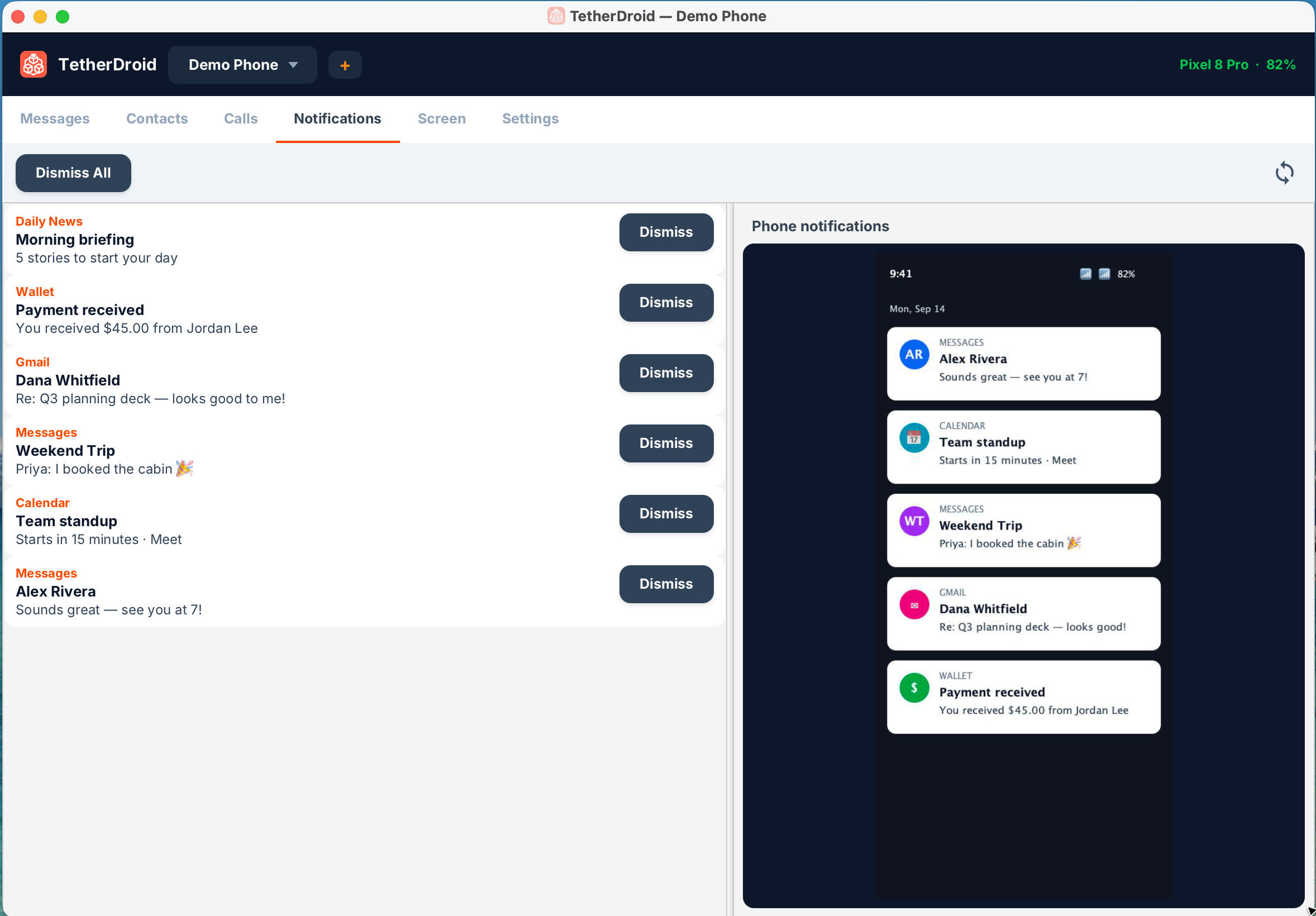
Mirror phone notifications to your desktop and clear them in one place, so nothing slips by while you work.
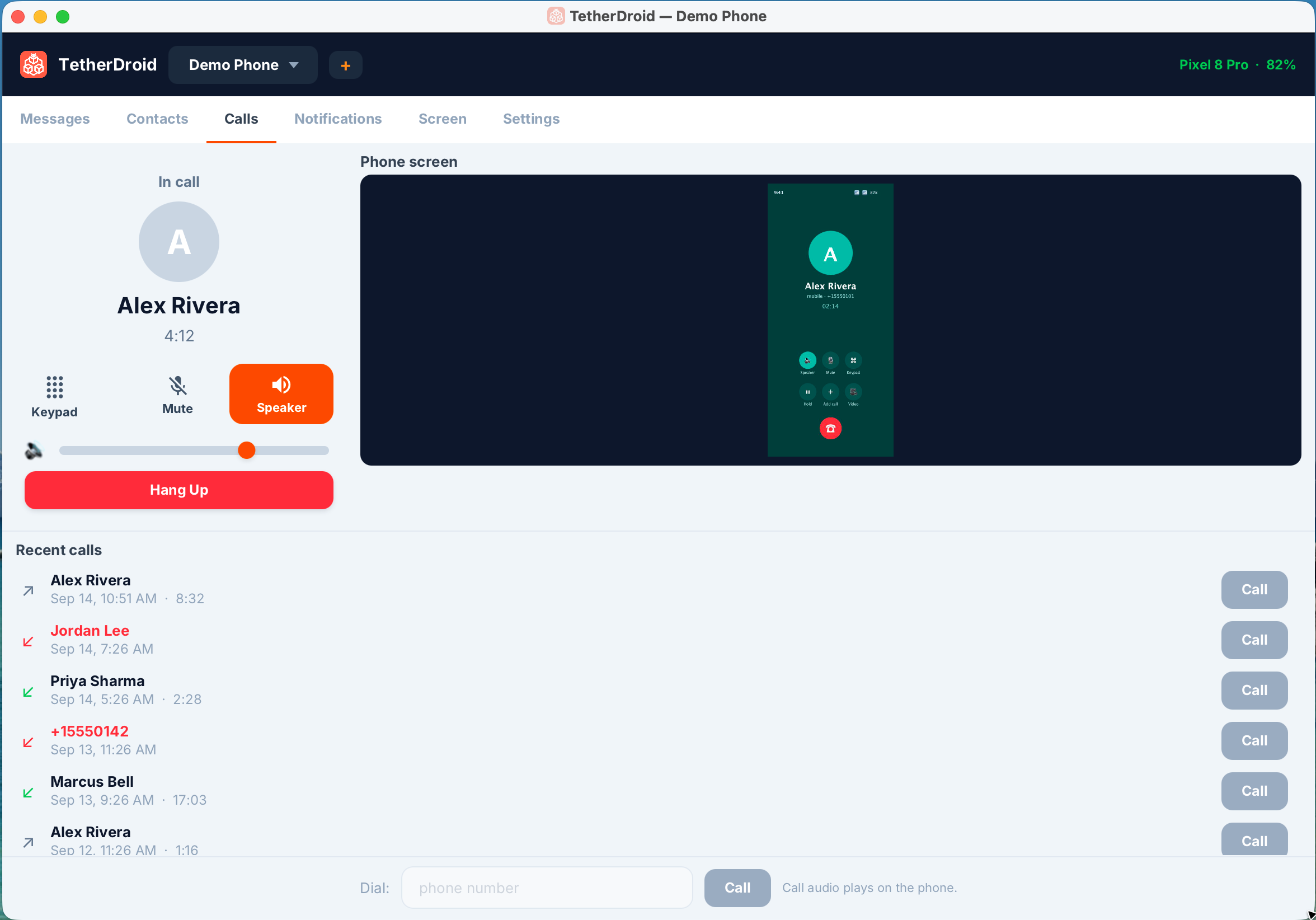
See who's calling and control incoming calls from your desk — no scramble for the phone mid-meeting.
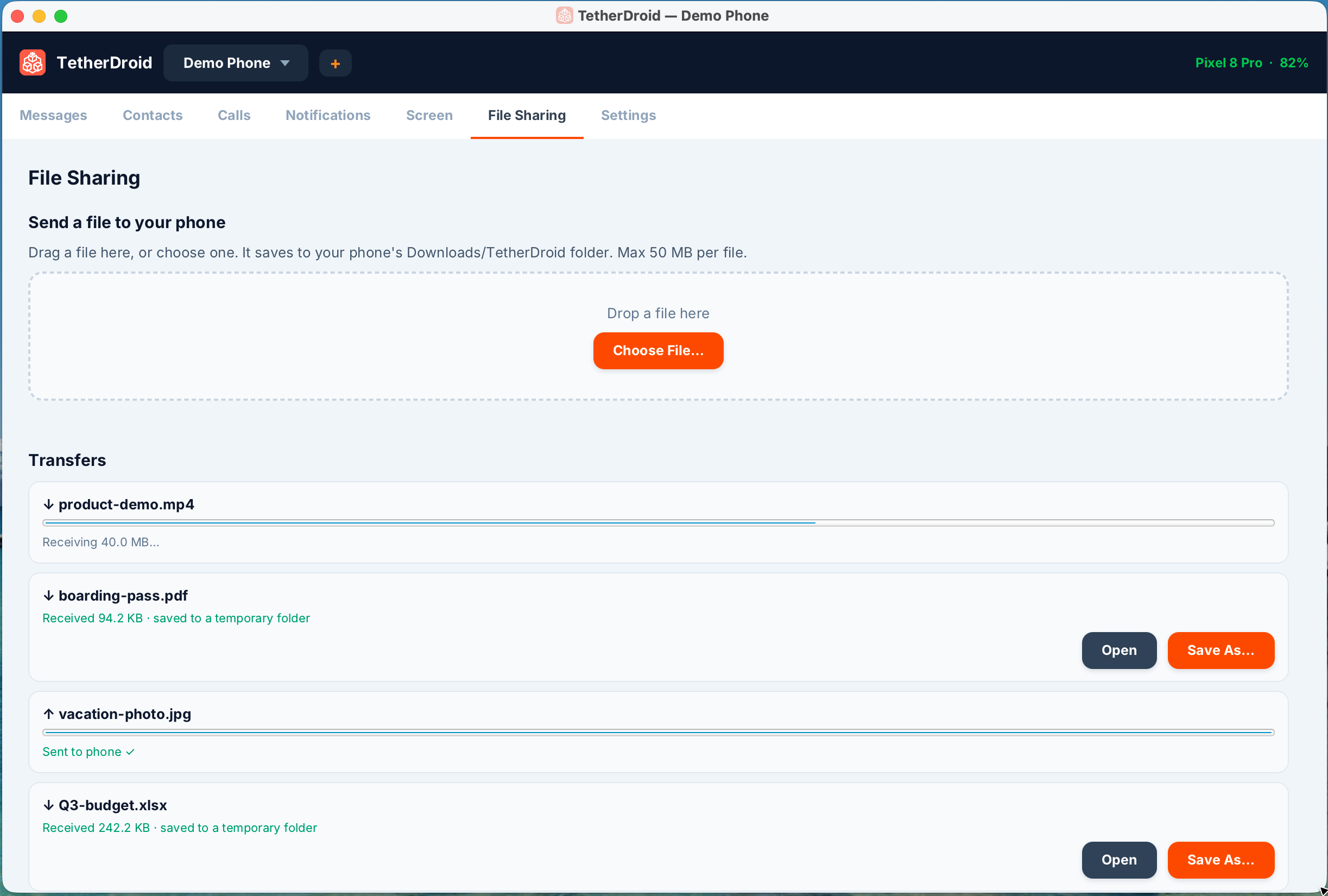
Send files between your phone and desktop in a tap — share from any app or drag-and-drop on your Mac. Encrypted end-to-end.
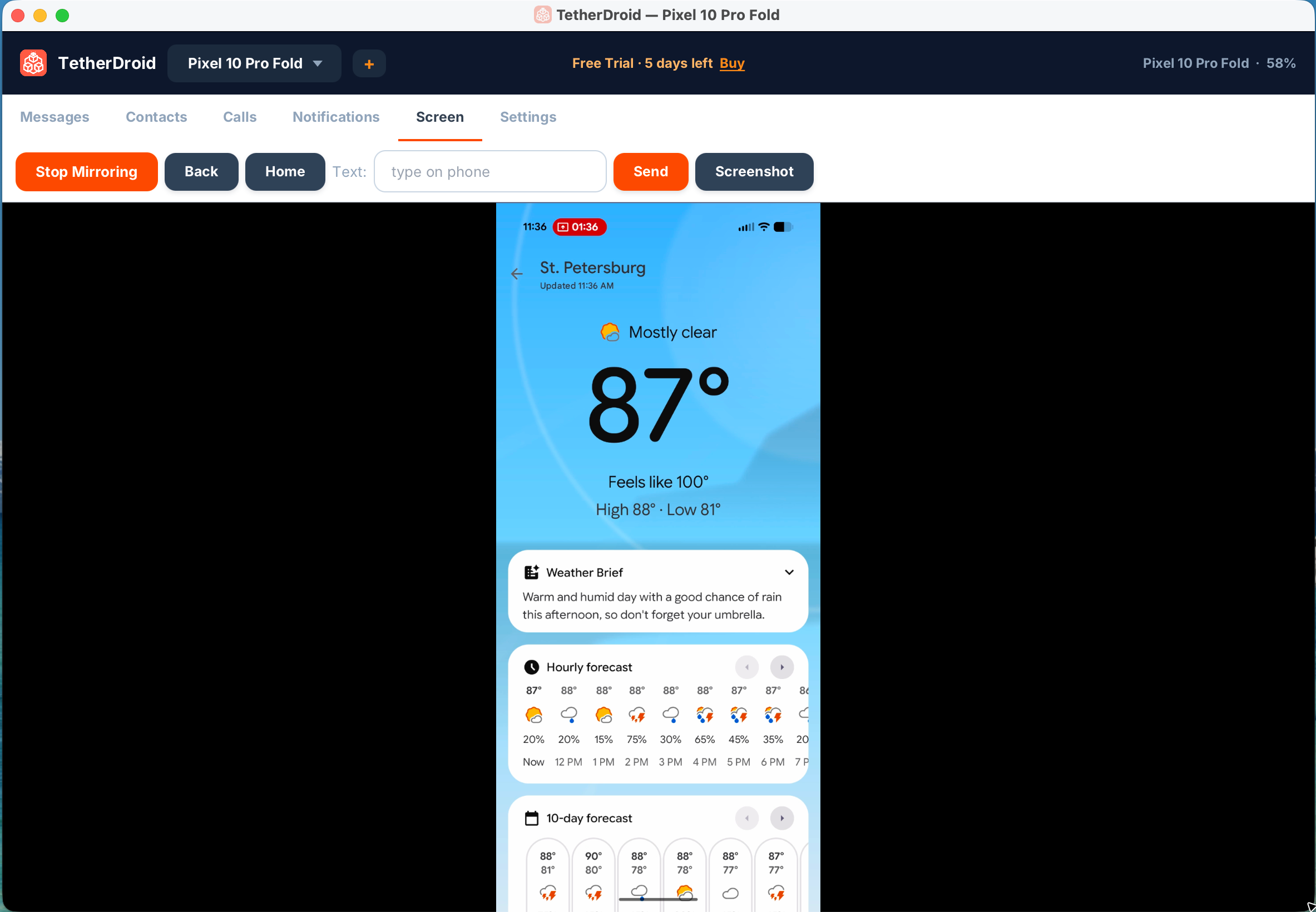
A live view of your phone screen on your desktop, so you can confirm what's happening before you send.
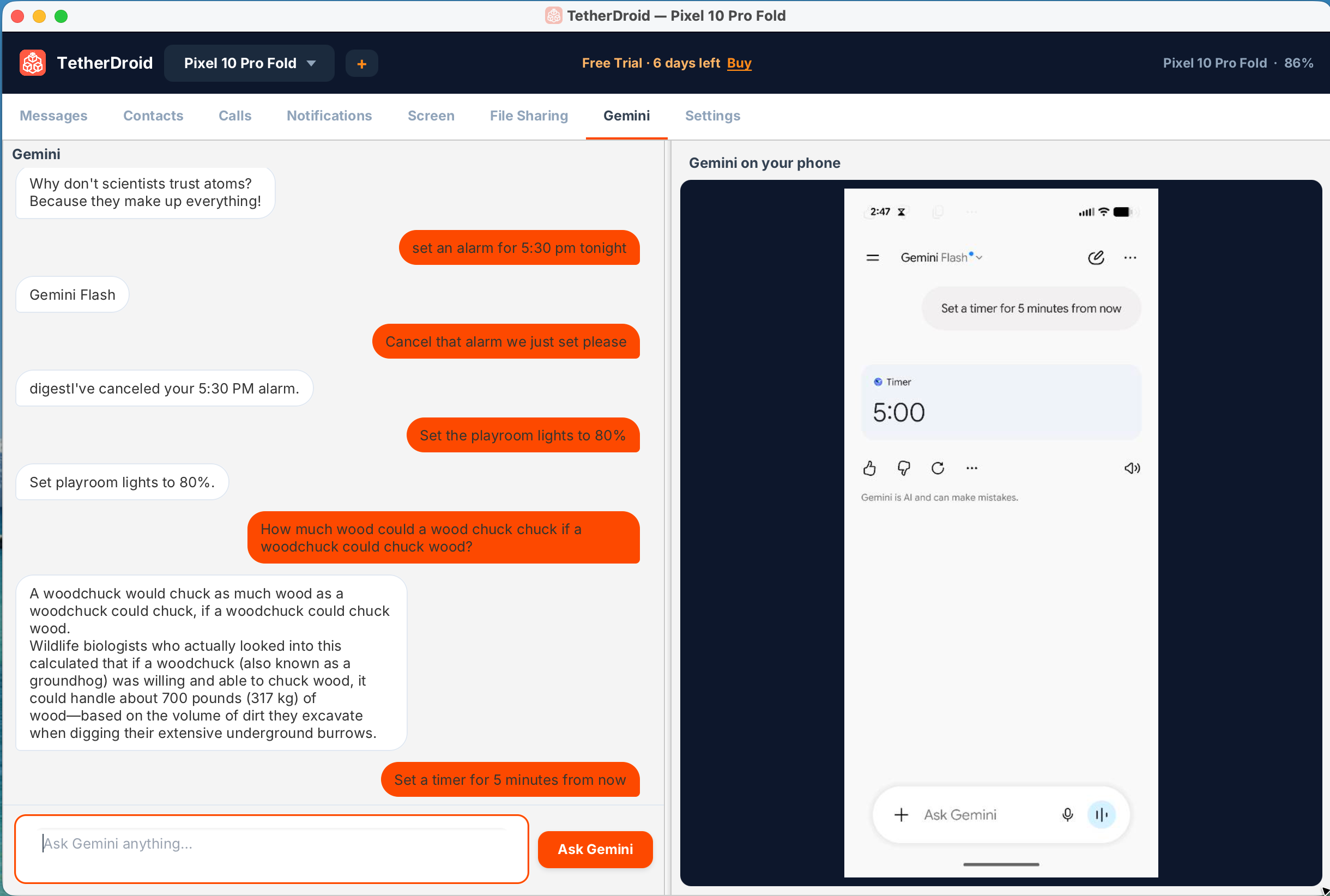
Ask Google Gemini right from your desktop — get answers to questions, set timers, control your smart-home automations, and more.
Messages and screen data are encrypted end-to-end between your phone and desktop. Your conversations stay yours.
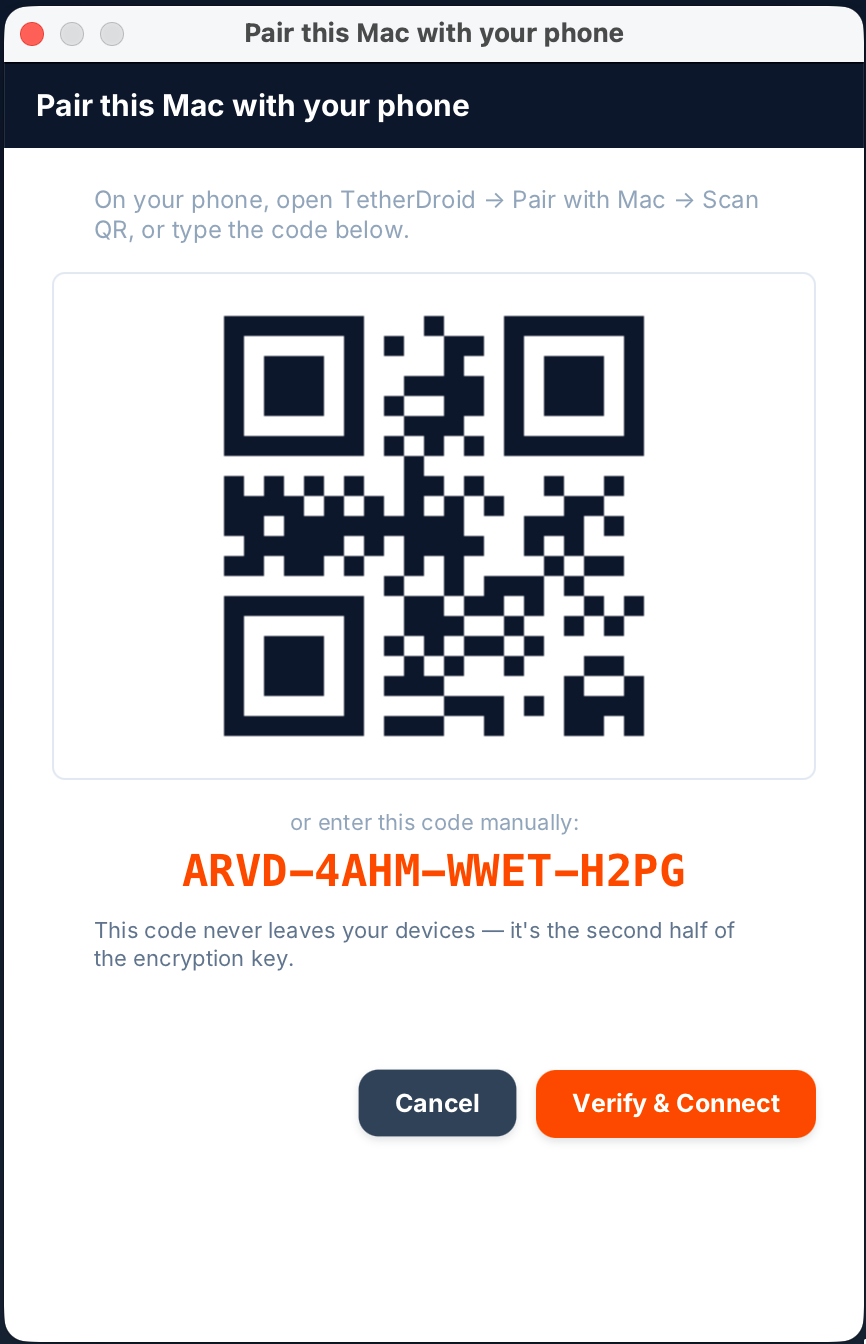
Designed so the secure path is also the easy one.
Get the TetherDroid app on your Android phone and the client on your Mac or Windows PC. Sign in to your account with two-factor verification.
Scan a one-time QR code to pair your devices. That exchange sets up the end-to-end encryption keys — they never leave your devices.
Your messages, calls, notifications and screen appear on your desktop instantly. Reply, react and manage — phone stays in your pocket.
Content flows encrypted between your own devices. We can't read your messages, and neither can anyone in between.
No cables, no fiddly setup. Pair once and TetherDroid quietly keeps your phone and desktop in sync.
Start with a full-featured trial. Upgrade when you're ready — one flat annual license.
Every feature, unlocked. No credit card required to begin.
One license, one year of TetherDroid on your Mac or Windows PC, and phone.
Download TetherDroid for your Mac or Windows PC, and Android, pair once, and you're connected. Your 7-day free trial starts the moment you sign in.
Closed Beta TetherDroid is currently in closed beta. Request beta access to get started.
Create your TetherDroid account
Install the desktop + Android apps
Scan the QR code to pair & go